The Working Frame
Animated hook titles, moving charts and stat cards used to mean learning After Effects. Now you can describe them to Claude or ChatGPT, key out the green background and drop them on your reel. One workflow, copy-and-paste prompts, and the checks that matter.
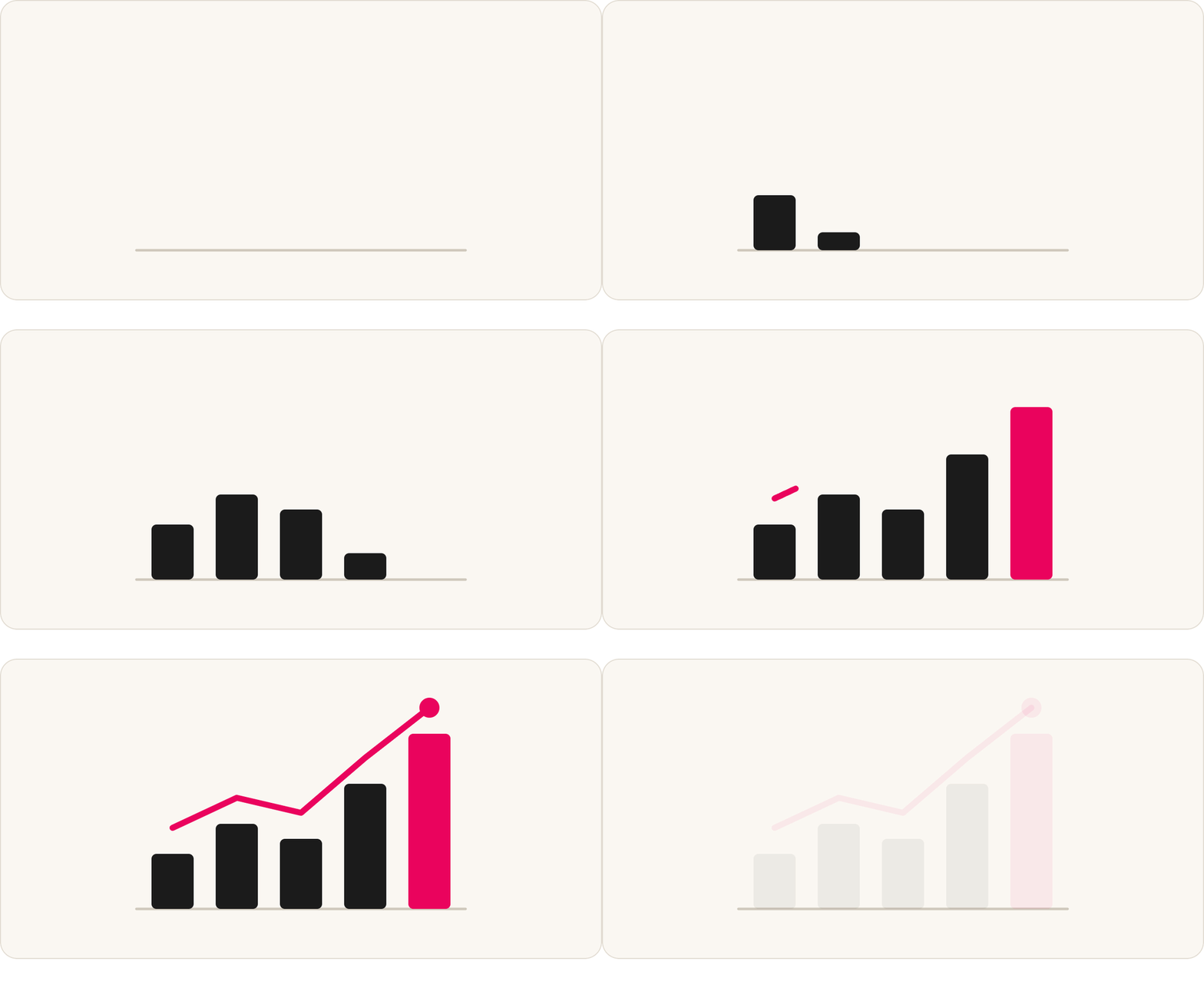
Animated text and moving charts make a post feel finished. They also used to be the point where a creator gave up, because the tools were built for motion designers, not for someone with a phone and a reel to post tonight.
You do not need those tools now. Claude or ChatGPT can build the animation from a description, play it back to you in the chat, and let you fix it by saying what is wrong. The workflow is the same in both, and you finish it in an editing app you probably already have, such as CapCut or Edits.
The workflow in five steps
Set up your Style Kit.
Describe the graphic.
Preview it and fix it in plain English.
Get it out as a video.
Key out the green and lay it over your reel.
Step 1: Style Kit first
Before you ask for anything, have your Style Kit ready: your background, text and accent colour codes, and your heaviest font. This is what stops every graphic looking like a stock template. Put the colour codes into each prompt, and the result matches your brand rather than a default.
Step 2: Describe the graphic
Tell the AI the size, the length, the text, the colours, the movement and where it can and cannot sit. Always include the safe zone. Instagram covers the top 14%, the bottom 35% and 6% down each side of a Reel with its own buttons, so keep everything in the middle.
An animated hook title (a moving title for the first two seconds of a reel). The rules that make it work:
Six words or fewer. If you cannot get there, the idea is really two hooks.
One movement, finished by 0.8 seconds. A slow animation hides the promise.
One accent word, in your accent colour.
First, if you need the words, ask for them:
Here's my reel: [WHAT HAPPENS IN THE FIRST TWO SECONDS AND WHAT THE REEL IS ABOUT]. Write five hooks of six words or fewer, in my voice. Each should make a promise or open a question. For each, tell me the one word that should be in my accent colour.
Then build it:
Build an animated title for an Instagram reel, 1080 by 1920 (9:16), 2 seconds long. Text: '[HOOK]'. Font: the heaviest weight of [FONT], colour [TEXT CODE], with only '[WORD]' in [ACCENT CODE]. Movement: [type on / slide in from the left / pop word by word], finishing by 0.8 seconds and holding until 2 seconds. Background: pure green #00FF00, no shadows, so I can key it out. Keep the text in the middle of the screen, clear of the top 14%, the bottom 35% and 6% down each side. Show me it playing. Ask me anything you are unsure of before you start.
An animated chart or stat (a bar-chart race, or a card where a number counts up). Start with real figures from a source you can name, and put the source on screen. Ask the AI to find sources, then check them yourself:
I want to make an animated chart of [WHAT, e.g. camera unit sales by brand] from [YEAR] to [YEAR]. Find me three to five sources for real figures: company reports, industry bodies, government statistics or published market reports. For each one, give me the name, the link, the date it was published, what it counts and how, and which years it covers. Don't give me any numbers you can't link to. If the sources disagree, tell me where.
Then build the chart from the figures you have checked:
Here is my data: [PASTE TABLE: year in the first column, one column per name]. Build an animated bar-chart race for an Instagram reel, 1080 by 1920 (9:16). Show the top [5 to 8] names, ranked, with each bar's value at its end. 1.5 seconds per year, with bars sliding smoothly when they swap places and values counting smoothly between years, never jumping. The current year in large numbers in the top left. Title at the top: '[TITLE]'. Source in small text under the chart: '[SOURCE]'. Background [CREAM CODE], all bars [NEUTRAL CODE] except '[NAME]' in my accent colour [CODE], all text in [FONT]. Keep everything inside the middle of the screen, clear of the top 14%, the bottom 35% and 6% down each side. Hold the final year for 3 seconds. Show me it playing. Ask me anything you are unsure of before you start.
For a stat card, ask for a card that slides up, then a number that counts from 0 to your figure with easing, with the label, the period and the source on it. Hold it for about five seconds in total.
Want to practise first? Ask for made-up data, but have the AI label the chart "SAMPLE DATA, NOT REAL FIGURES" for the whole video. Never post made-up figures as real.
Step 3: Preview it and fix it in plain English
Claude's preview plays in the chat, so you can watch it before you do anything else. Do not rebuild from scratch. Say what to change and tell it to leave everything else alone:
Pace: "Make the movement finish by [SECONDS] seconds instead. Change nothing else."
Style: "Same text and colours, but with a [type on / slide in / pop] movement instead. Change nothing else."
Emphasis: "Make '[WORD]' bigger and slow it down by a third. Change nothing else."
A wrong number: "Pause on [YEAR]. The bar for [NAME] should be [VALUE]. Fix that year and change nothing else."
A chart that is too fast: "Slow it to 2 seconds a year, make the names 50% bigger, and hold the final year for 3 seconds. Change nothing else."
It also helps to check a single frame. Screenshot the first frame with the title on it and ask:
Here's a screenshot of my first frame with the title on it. Can I read it in under two seconds? Is it clear of the right edge and the bottom? Is only one word in the accent colour? Tell me the one change that would improve it most.
Step 4: Get it out as a video
Ask for a 9:16 MP4, 1080 by 1920, 30 frames a second, ready to download. Be ready for this to vary: whether you can download a video file depends on your plan and the tools available in your chat. If you cannot get a file, screen-record the preview playing instead, and use that recording in the next step.
Step 5: Key out the green and layer it
In CapCut or Edits, put your reel on the bottom layer and the animation on a layer above it. Use the chroma key (green screen remover) to take out the pure green #00FF00, and the graphic will sit on your footage. Check the first two seconds on a phone before you post.
What good looks like
You can read the title in under two seconds.
The movement is finished by 0.8 seconds.
Only one word is in the accent colour.
Nothing sits under Instagram's buttons.
A chart has its source on screen, and every number matches your checked table.
What goes wrong, and the fix
Too many words in the title: Cut it to six or fewer. If you cannot, it is two hooks.
It moves for too long: The movement should finish by 0.8 seconds.
Green edges after keying: Ask for pure #00FF00 with no shadows or outline, then key it again with the strength turned up a little.
It looks like every other title: Change the hook wording first. Movement cannot rescue a generic line.
The title is hidden under buttons: Keep it out of the top 14%, the bottom 35% and 6% down each side.
Chart bars too thin: Show eight names at most.
Chart too fast to follow: One and a half to two seconds a year.
No source on screen: Put it in small text under the chart, and in your caption.
The figures tell a different story than you expected: Post the real story.
What this cannot do
It cannot verify your figures. The AI can write the chart, but you must check the sources. If two sources disagree, say so rather than choosing the convenient one.
Fonts in a preview may not match yours exactly. Check the final result in your editing app.
It cannot tell you whether the hook is good for your audience. Test two hooks across two reels and compare how many people watch past three seconds.
It cannot rescue weak footage. Graphics go on top of your video. They make a good clip look finished, but a shaky, badly lit clip stays shaky and badly lit underneath.
AI for Creators
If you want these prompts ready to use, plus the rest of the set, that is what the Motion Graphics course in AI for Creators is for. It is the Skool group with prompts, assets and systems for making content with AI: Animated hook titles, Animated charts and stats, Kinetic captions and Text behind you, on video, all built on your own Style Kit, tested in Claude and ChatGPT, with new trending lessons added every week.
Prompts, assets and systems for making content with AI. New lessons every week, always including what’s trending.

Keep reading

Opus Clip Free Alternatives: Which Tools Turn Long Videos Into Clips
They all work the same way. The difference is how each one charges, and what you actually get on the free plan.

Claude Duet: What It Does for a Small Business, and What You Can Do in the UK Today
Claude Duet is a proactive agent from Anthropic. What it does, how it handles risk, and what you can do in the UK today.

Nano Banana 2.1 or Nano Banana Pro: Which to Use for Your Photos and Graphics
Both are Google's image models. Which one to use for everyday edits, and when Pro is still worth switching to.