The Working Frame
Since GPT-6 arrived, ChatGPT answers come with charts, buttons and checklists. What it's doing, when it helps, and how to go back to plain answers.
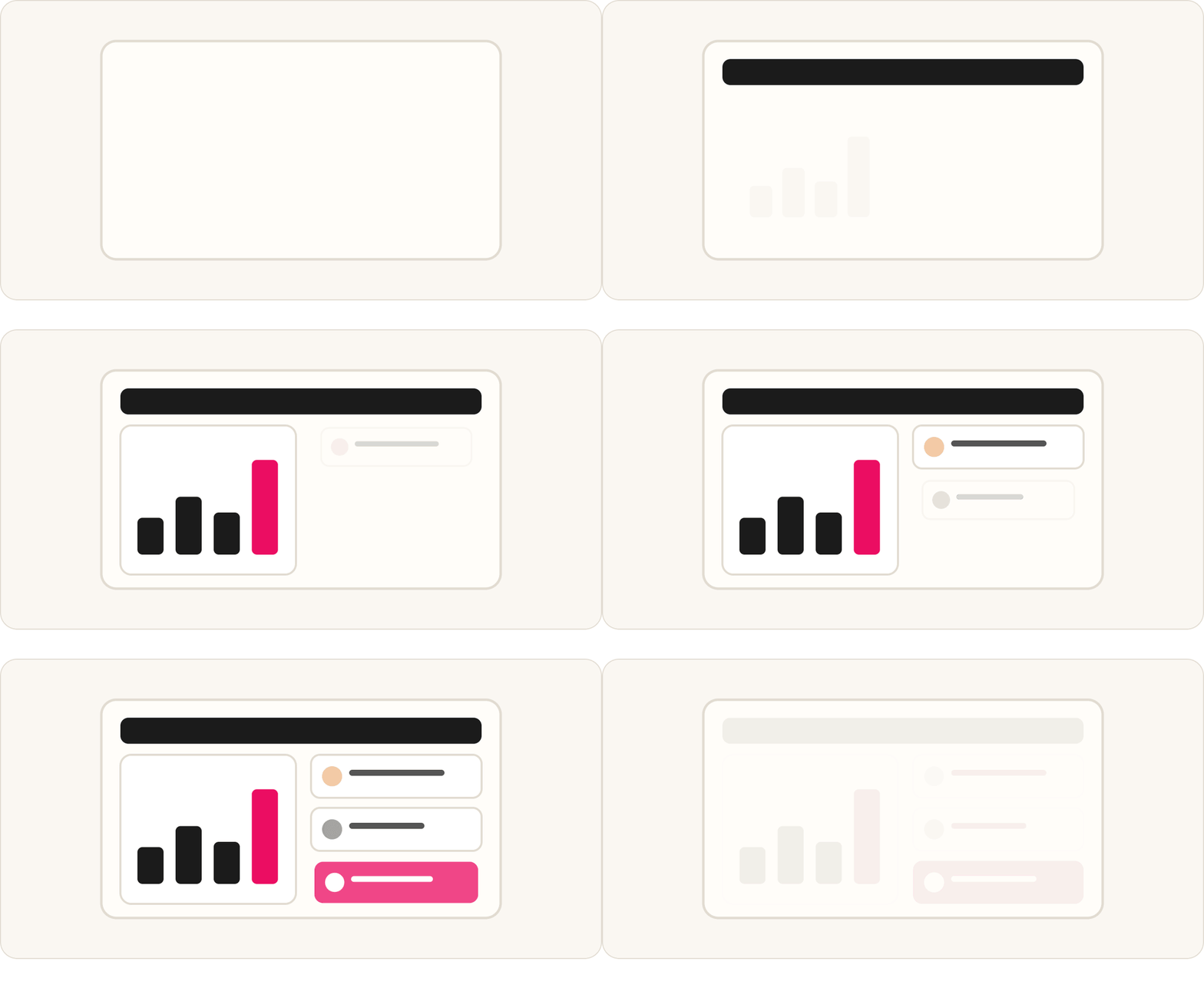
If your ChatGPT answers suddenly look different, you haven't changed anything. On 7 October 2026 OpenAI rolled out GPT-6, and with it a new way of laying out answers called Intelligent UI. Paid plans got it that day, and Free and Go users from 8 October. Instead of a block of text, a reply can now arrive with a chart you can adjust, a checklist you can tick, buttons, a form or a small working tool such as a calculator.
Some people love it. Some people just wanted the answer. Either way, it helps to know what it's doing, because the layout now changes how you work with an answer, not only how it looks.
What Intelligent UI actually is
The simplest way to think about it: ChatGPT now decides the format of each answer as well as the words. Ask for a weekly budget and you may get a table with a total that updates. Ask it to plan a shoot and you may get a checklist. Ask a question that only needs a sentence and you should still get a sentence. OpenAI's help page describes replies that can include graphics, tappable buttons, forms, charts, checklists and interactive diagrams, and says ChatGPT uses plain text when that works best.
A few details worth knowing:
It works with GPT-6 at every thinking level, from Instant upwards. It doesn't appear in Voice, in the Work tab, or when you use the Pro model (GPT-6 Astra).
It doesn't use up a separate allowance. An interactive answer counts the same as any other message.
It works on the web and in the updated mobile apps. Older versions of the Mac and Windows desktop apps don't show it, so update the app if you want it.
Ticks on a checklist survive a page refresh, but they stay inside that chat. They don't carry over anywhere else.
When it genuinely helps
Intelligent UI is at its best when the answer is something you'll use rather than read. Comparisons are easier to scan in a table. A packing list or a shot list is more useful as boxes you can tick on your phone. A budget, a price-per-use sum or a "how much do I need to save each month" question is better as a small calculator, because you can change the numbers yourself without asking again.
A useful habit is to ask for the tool rather than the answer. "Make me a calculator that works out my day rate from my monthly costs and the days I want to work" gives you something you can come back to. "What should my day rate be?" gives you one number based on guesses.
When it gets in the way
It's less helpful when you want to copy the answer somewhere else. Interactive pieces don't always paste cleanly into an email, a document or your notes. It can also be distracting when you're writing: if you asked for help with a paragraph, you probably don't want it turned into a chart. And because ChatGPT chooses the layout, the same question can come back looking different on different days, which matters if you've built a routine around a particular output.
How to switch it off, or turn it down
There isn't a strict text-only mode. What you can do is tell ChatGPT to use as few visuals as possible:
Open ChatGPT, click your profile picture and go to Settings.
Open Personalization (spelt the American way in the app) and find Layout and Visuals.
Choose Simple.
OpenAI's own help pages word this slightly differently (one describes a "Layout and visuals" setting you switch off), so if you don't see it under Personalization, look for that wording elsewhere in Settings. Both pages agree on the important part: Simple reduces the visuals, but some may still appear when ChatGPT thinks an answer needs them.
You can also steer it without touching Settings:
In one chat: say what you want at the start. "Plain text only, no charts or interactive elements" works for that conversation.
Every time: add a line to your Custom Instructions, such as "Keep answers as plain text unless I ask for a table or a tool." OpenAI says these preferences guide the layout rather than guarantee it, so it may still slip now and then.
The other way round: if you like the new layouts, say so in Custom Instructions too: "Use tables for comparisons and checklists for anything with steps."
The bigger lesson
Every time a tool changes how it presents answers, the people who cope best are the ones who had already told it how they like to work. If ChatGPT knows you write for a living, that you want answers you can paste straight into a document and that you only want a table when you're comparing options, a change like Intelligent UI barely touches your day. If it knows nothing about you, you'll keep fighting the defaults.
That's what AI for Creators is built around: setting up ChatGPT or Claude once with who you are, what you make and how you want answers back, so each update to the tool changes less about how you work.
Based on OpenAI's help pages as of 12 October 2026. Features and menu names may change as the rollout continues.
Prompts, assets and systems for making content with AI. New lessons every week, always including what’s trending.

Keep reading

Opus Clip Free Alternatives: Which Tools Turn Long Videos Into Clips
They all work the same way. The difference is how each one charges, and what you actually get on the free plan.

Claude Duet: What It Does for a Small Business, and What You Can Do in the UK Today
Claude Duet is a proactive agent from Anthropic. What it does, how it handles risk, and what you can do in the UK today.

Nano Banana 2.1 or Nano Banana Pro: Which to Use for Your Photos and Graphics
Both are Google's image models. Which one to use for everyday edits, and when Pro is still worth switching to.